The useful part, up front
- Sync and backup can behave differently after deletion.
- Keep a protected copy separate from the original’s risks.
- Test a restore without overwriting your working files.
Choose the files you would struggle to replace
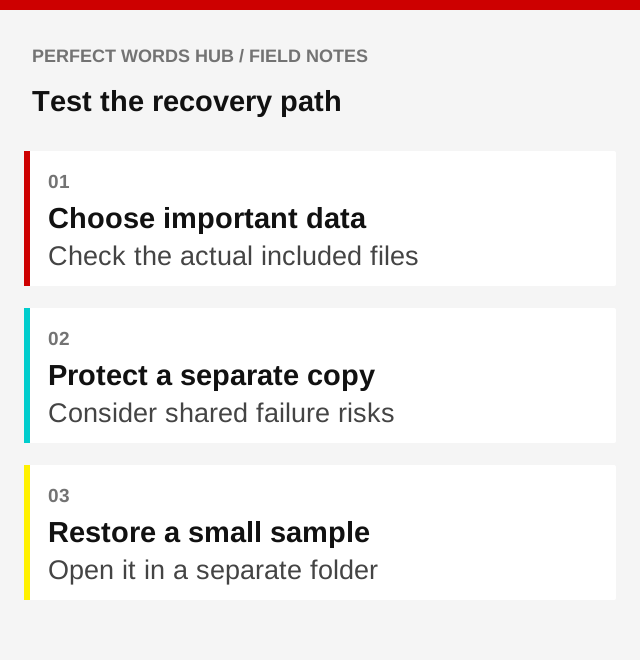
Start with personal documents, original photographs, important work, and other files that cannot simply be downloaded again. Note where they are stored. An automatic backup may cover one folder while leaving another untouched.
List any app-specific export needs and check the app’s official instructions. A shortcut on the desktop may point to a file somewhere else; it is not necessarily the file itself. The goal is to know which actual data must be recoverable.
Ask what happens after a deletion
Sync keeps locations aligned, which can include propagating a deletion or unwanted edit. Some services provide version history or recovery windows, but the features and retention limits vary. Do not assume every synchronized copy is an independent backup.
Use a harmless test file to understand the behavior or read the provider’s recovery documentation. Ask how long older versions remain available and what happens if the account is inaccessible. These details are more useful than the mere presence of a cloud icon.
Separate at least one copy from the same failure
A drive kept beside the laptop can be affected by the same theft or physical damage. A backup that remains writable by an infected machine may also be at risk. Think about the specific failures you want the additional copy to survive.
CISA’s ransomware guidance emphasizes protected backups and recovery testing. For a household, the practical design may involve a securely stored disconnected copy, a suitably protected service, or another arrangement you understand. No arrangement eliminates every risk.
Test recovery into a safe destination
Select a small non-sensitive sample and restore it to a new folder rather than over your current working copy. Open the recovered file and confirm that it is readable and the expected version. Record when the test succeeded and which backup it used.
If the restore requires a password, recovery key, or particular account, check that you have a safe independent way to access it. Do not put the only recovery instruction inside the account or device whose loss would make it unavailable.
Make the routine fit how your files change
Choose a schedule based on how much recent work you could tolerate losing and the capabilities of your backup method. Review failures instead of assuming automation ran successfully. Repeat a small recovery check after major device or account changes.
Protect backups because they contain copies of sensitive data, and follow the tool’s official encryption and recovery guidance. Pair the routine with your account-recovery plan. A backup supports recovery; it does not replace updates or prevent every security incident.
Questions worth checking
Does a successful backup notification prove everything is recoverable?
It is useful information, but it does not establish that every important folder was included or that you know the recovery process. Check scope and restore a small sample. Review skipped files or errors rather than relying on the notification alone.
Should a restore test replace my current files?
A separate destination is safer for a routine test. Compare the restored sample with the expected content and version, then clean up the test copy appropriately. Do not delete the originals or overwrite current work merely to demonstrate that a backup exists.
Sources & further reading
- CISA: Ransomware prevention and backup guidance (opens in a new tab)
- CISA: Protecting data stored on devices (opens in a new tab)
- FTC: Personal information and device security (opens in a new tab)
Source links checked September 30, 2026. Requirements and guidance may change.
For general education in a U.S. context. This is not financial, insurance, legal, tax, or medical advice. Examples are illustrative. Check current rules and relevant policy documents, and seek qualified help for your circumstances.
Would you pause before the click?
Put the ideas into practice with 12 questions and explanations.
Take the quiz